
You want to use WhatsApp professionally for marketing and support. The Business App isn't cutting it anymore. You need the API.
But when you Google "WhatsApp API setup," you end up in a swamp of developer documentation, Postman tutorials, and Docker container guides. That's a waste of time for 99 percent of e-commerce businesses.
The truth: You don't need a developer. You don't need your own server. You don't need weeks for the setup.
With the right partner, setting up the WhatsApp API takes less than 15 minutes. This guide shows you how it works – no technical knowledge, no detours.
Why the WhatsApp Business App Isn't Enough
Let's quickly clarify why you're here in the first place.
The free WhatsApp Business App has three problems that become dealbreakers for growing businesses:
1. Device limitation: Maximum five devices simultaneously. With ten support agents, that gets tight. With 50? Impossible.
2. No real automation: Away messages and quick replies are nice. But automated flows that respond to customer behavior? Not supported.
3. GDPR gray zone: The Business App stores contact data on Meta servers without a data processing agreement. For businesses in Europe, that's a legal risk.
Bottom line: If you're serving more than a few dozen customers via WhatsApp, you need the WhatsApp Business API. Period.
What Is the WhatsApp Business API Actually?
Here's the biggest misconception: The WhatsApp Business API is not an app. You can't download it from the App Store. There's no user interface.
Think of the API as an engine. An engine alone doesn't drive – you need a car around it. The API provides the technical foundation. The user interface, the inbox, the flow builder – that's what software like Chatarmin delivers.
Cloud API vs. On-Premises API
Meta offers two variants of the API:
| Cloud API | On-Premises API | |
|---|---|---|
| Hosting | Meta servers | Your own servers |
| Setup time | Minutes | Weeks to months |
| Maintenance | None | Docker, updates, backups |
| Throughput | Up to 1,000 messages/second | Depends on server infrastructure |
| Costs | Message fees | Server + message fees |
| Status 2026 | Standard | Legacy (being phased out) |
The On-Premises API was designed for corporations with their own IT departments. Meta itself now lists the On-Premises API as "Legacy" (deprecated) in the developer documentation. New features come almost exclusively to the Cloud API first – or only.
To achieve the same throughput as the Cloud API (up to 1,000 messages per second), On-Premises requires an elaborate server infrastructure with load balancing and high availability. For most businesses, that's overkill and uneconomical.
The Cloud API is the standard for 2026. It's hosted by Meta, faster to set up, and requires no server maintenance. All the following steps refer to the Cloud API.
What You Need for the Setup (Checklist)
Before you start, gather these things:
Required:
Verified Meta Business Manager (or ready for verification)
Two-factor authentication (2FA) enabled in Business Manager
A phone number that's currently not active in WhatsApp
Official business documents (business registration, trade license – see official list in Meta Business Help Center)
Access to email or SMS for number verification
Payment method added to Meta Business Manager (credit card or PayPal)
Helpful:
High-resolution logo (for business profile)
Short business description (max. 256 characters)
Decision on business category (e.g., "E-Commerce," "Retail")
About the payment method: Meta charges variable costs for template messages directly from your stored payment method. Without a valid credit card or PayPal in Business Manager, the API won't work – even if you've already paid your BSP.
About the phone number: You can migrate an existing number. But heads up: After migration, it won't work in the regular WhatsApp app or Business App anymore. Many businesses use a new number specifically for the API channel.
Setting Up the WhatsApp API: The BSP Route
BSP stands for Business Solution Provider. These are Meta-authorized partners that give you access to the WhatsApp API – without having to wrestle with the Meta developer console yourself.
Why this route is better than DIY:
No developer needed: You click through a setup instead of writing code.
Ready-to-use interface: Inbox, flow builder, campaign tools – all included.
GDPR compliance: A reputable BSP provides you with a data processing agreement.
Support: When something breaks, you have a contact person. With Meta, you have documentation.
The technical DIY route through the Meta developer portal is possible. But it costs time, requires programming skills, and in the end, you still lack the software to use the API effectively.
Step-by-Step: Setup via Chatarmin
The following setup uses the so-called "Embedded Signup" – a Meta-standardized process that runs directly within the Chatarmin interface.
Step 1: Create Account and Start Onboarding
After registering with Chatarmin, the onboarding flow starts automatically. You'll be guided through each step.
Step 2: Connect to Meta Business Manager
In the next step, you connect your Meta Business Manager. If you don't have one yet, you can create it directly in the process.
Important: Use your company's Business Manager, not your personal Facebook account. The Business Manager is the central hub for all your company's Meta products.
⚠️ Avoid this showstopper: Make sure to enable Two-Factor Authentication (2FA) in your Business Manager before starting the setup. Without active 2FA, Meta won't grant access to the WhatsApp API – the setup will simply fail. You'll find this setting under "Security Center" in your Business Manager.
Step 3: Add Phone Number
Now you enter the phone number you want to use for WhatsApp. Chatarmin automatically checks if the number is available.
Three options:
New number: Enter number, verify via SMS or call – done. Landline numbers work too (verification via voice call).
Migration from Business App: Transfer existing number. Note: The number won't work in the app anymore afterward.
Migration from another BSP: Switching to Chatarmin is possible without losing your number.
What Happens to Your Old Chats?
Let's be honest here: If you migrate from the Business App to the API, you usually can't take your old chat history with you.
The API starts with an empty inbox. You keep your number, but the conversation history stays in the app. This is technically unavoidable – the Business App and the API are two completely separate systems.
Before you migrate:
Manually export important chat histories from the Business App
Save customer data that only exists in chats
Inform important contacts about the switch if necessary
The API is a fresh start for professional scaling. Losing the history is annoying, but for most businesses, the gain in functionality far outweighs it.
Step 4: Set Up Business Profile
Your WhatsApp Business profile is the first thing customers see. Fill it out completely:
Profile picture: Your logo, minimum 640x640 pixels
Business name: How you want to appear to customers
Description: Short and concise – what does your business do?
Category: Choose the most appropriate from the list
Address and website: Optional, but recommended for trust
Display Name: The Hidden Stumbling Block
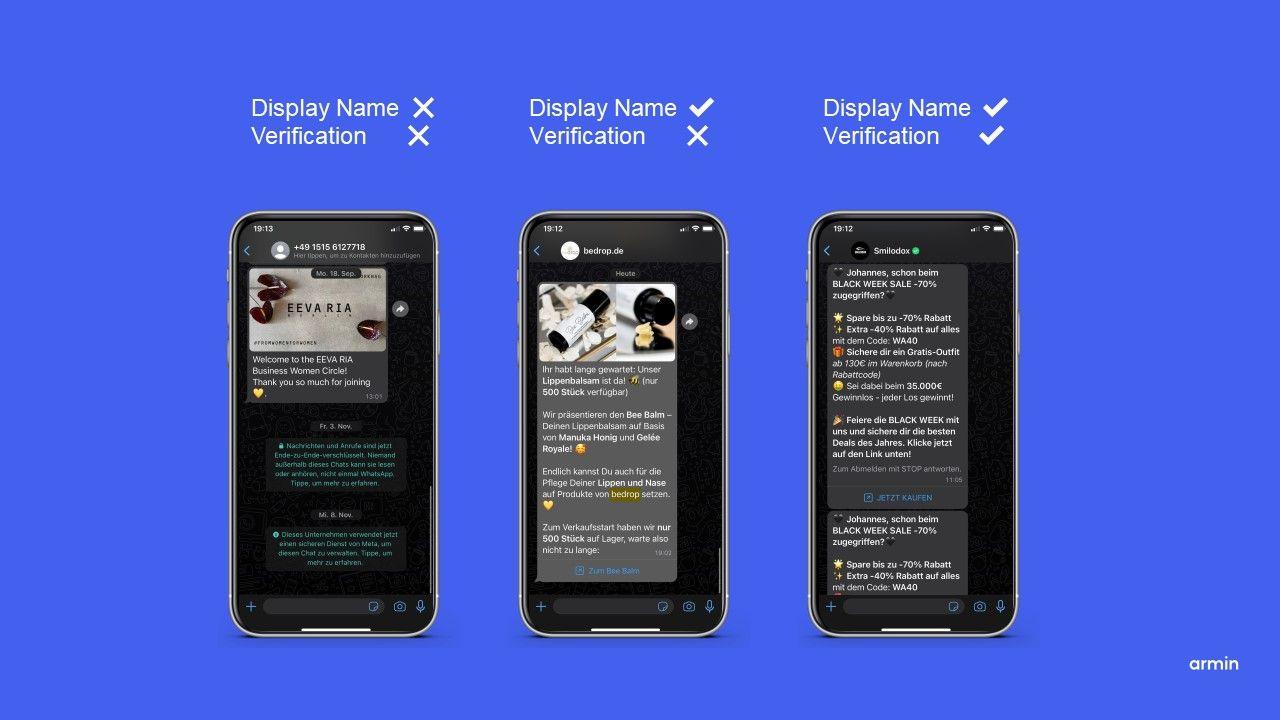
What many don't know: Your display name – the name customers see in the chat – is reviewed and approved by Meta separately. This is a distinct step after business verification.
Meta rejects display names if:
There's no clear connection to the legal business name
The name doesn't match the brand on your website
Only generic terms are used (e.g., "Best Online Shop")
The name is misleading or violates trademarks
Example: Your company is legally named "Smith E-Commerce LLC," your brand is "StyleShop." Then "StyleShop" works as a display name – but "America's Cheapest Fashion Store" will be rejected.
Approval usually takes a few hours. If Meta rejects it, you can submit a new name.
Step 5: Complete Business Verification
This step is the most important – and where many fail.
Meta requires proof that your business exists and is legitimate. Without this verification, you're stuck at low messaging limits and can't use certain features.
Good news: You can often start before verification is complete. In "sandbox mode" or with limited access, you can run initial tests and get to know the system. But to scale beyond 250 conversations per day, full verification is mandatory.
What you need to upload (per Meta Business Help Center):
Business registration certificate (not older than 12 months)
Or: Trade license, tax certificate, utility bill with company name
Common rejection reasons:
Documents are older than 12 months
Company name on document doesn't exactly match the Business Manager
Address differs
Document is hard to read (photo instead of scan)
Verification typically takes 2–5 business days. In exceptional cases, up to two weeks.
Step 6: Connect Integrations
The API setup is technically complete. But the real value emerges when data starts flowing.
Chatarmin offers direct integrations with:
Shopify: Orders, abandoned carts, shipping notifications
Klaviyo: Sync segments, trigger flows
HubSpot: Link contacts and deals
Zendesk: Create tickets from WhatsApp chats
Most integrations are one-click connections. For more complex setups, there are webhooks and an open API.
What Does the WhatsApp API Cost?
The pricing model changed in 2025/2026. Here's the current structure:
Meta Fees (Required for Everyone)
Meta charges fees per message, depending on the category. You'll find exact amounts in the official Meta Rate Cards – they vary significantly by recipient country. India is very cheap, for example, while Germany is mid-range and North America is more expensive.
| Category | Description | Cost Level |
|---|---|---|
| Marketing | Newsletters, promotions, offers | Highest |
| Utility | Order confirmations, shipping info | Medium |
| Authentication | Login codes, verifications | Low |
| Service | Replies to customer inquiries (24h window) | Free |
The key point: Service conversations are free. When a customer messages you and you reply within 24 hours, you pay nothing to Meta. This makes WhatsApp extremely attractive for support.
The 72-Hour Hack for Performance Marketing
Here's the biggest lever for e-commerce in 2026:
When a customer enters your chat through a Click-to-WhatsApp ad (Facebook or Instagram), a 72-hour window opens. During this time, ALL messages are free – including marketing templates.
This means: You run an ad, the customer clicks "Open WhatsApp," and you have three full days to engage them with messages without paying a cent to Meta.
For performance marketing teams, this is a game-changer. You can:
Immediately send a welcome template (free)
Follow up with product recommendations (free)
Send a discount code afterward (free)
All within the 72 hours. After that, normal fees apply.
Software Costs
Besides Meta fees, you pay for your BSP's software. Chatarmin doesn't have public package pricing – costs depend on your usage volume and feature requirements.
Sounds like a lack of transparency? It's not. Chatarmin focuses on individual consultation because a startup with 500 contacts has different needs than an enterprise retailer with 500,000.
Book a demo for a customized quote.
Messaging Limits: How to Scale Without Getting Blocked
After setup, you don't start with unlimited volume. Meta limits how many unique contacts you can reach within 24 hours.
The Tier System
| Tier | Limit per 24h | Requirement |
|---|---|---|
| Unverified | 250 | Freshly set up |
| Tier 1 | 1,000 | Business verification |
| Tier 2 | 10,000 | Good quality over time |
| Tier 3 | 100,000 | Continued good quality |
| Unlimited | Unlimited | Consistently high quality |
How to move up:
Meta evaluates your message quality based on user feedback. If recipients report your messages as spam or block you, your Quality Rating drops. With "Green" (good), you automatically move up; with "Red" (bad), you get downgraded or suspended.
Specifically: If you use at least half of your current limit with good quality within 7 days, Meta automatically increases your limit to the next tier.
What happens when you hit the limit? You can't "force" past it. Meta blocks further messages until the next 24-hour cycle.
In practice, this means:
Only send to contacts who explicitly opted in
Don't overdo the frequency
Deliver value, not just promotions
More details on this topic in our post about WhatsApp Business for Companies.
The Green Checkmark: Trust at First Glance
The "Green Tick" or "Official Business Account" (OBA) is the verification badge next to your business name.
Important upfront: You do NOT need the green checkmark to use the WhatsApp API. You can start, scale, and use all features without it. The green checkmark is an optional trust signal – not a technical requirement.
Benefits
Your business name is displayed even when the contact hasn't saved you
Higher trust with first-time contacts
Signal of legitimacy to skeptical customers
Requirements
Business verification in Meta Business Manager (required)
Well-known brand with verifiable media presence
Clean compliance history
Reality check: The green checkmark isn't automatic. Meta manually reviews every application and rejects many – especially for lesser-known brands. Chatarmin supports customers with the application during individual onboarding.
Why Meta Rejects Your Templates
Templates are pre-written messages you use for marketing, utility, or authentication. Before you can send them, Meta must approve them. And this is where many fail.
Approval usually takes a few minutes to hours. But when Meta rejects, you're left puzzled – error messages are often vague.
The Three Most Common Rejection Reasons
1. Variable at sentence start
Meta often doesn't allow placeholders directly at the beginning of a sentence. This is meant to prevent spam.
❌ Rejected: {{1}}, your order is on its way!
✅ Approved: Hi {{1}}, your order is on its way!
2. Too vague wording
Templates must clearly communicate what they're about. Generic greetings without context get rejected.
❌ Rejected: Hi {{1}}, we have news for you.
✅ Approved: Hi {{1}}, your order #{{2}} has been shipped. Here's your tracking link: {{3}}
3. Wrong category selected
If you submit a marketing template as "Utility" to save costs, Meta catches it. And rejects it.
Marketing: Ads, offers, newsletters
Utility: Transactional info (order status, appointments)
Authentication: Login codes, verifications
Categories determine the price. Don't try to game the system.
Checklist Before Submitting
No placeholder at sentence start
Clear context and value for the recipient
Correct category selected
No spelling errors
No prohibited content (alcohol, gambling, etc. depending on region)
Common Mistakes During API Setup
From hundreds of onboardings, we know the typical stumbling blocks:
1. 2FA not enabled The setup fails because two-factor authentication is missing in Business Manager. Solution: Enable it in Security Center beforehand.
2. Wrong number chosen The number is still active in a personal WhatsApp. Solution: Deregister there first, then set up API.
3. Business Manager belongs to someone else A colleague created the Business Manager with their personal account and is now unreachable. Solution: Always keep a company account as admin.
4. Documents don't match Business Manager The company name on the business registration reads "Smith E-Commerce LLC," but the Business Manager says "Smith Shop." Meta rejects. Solution: Align the names.
5. No payment method added The API is set up, but Meta can't charge the message fees. Solution: Add credit card or PayPal in Business Manager.
6. Display name doesn't match the brand The desired display name is rejected because it has no connection to the business. Solution: Use a name that appears on the website or in documents.
7. Impatience during verification Verification takes time. Asking Meta doesn't speed things up. Solution: Prepare documents cleanly, then wait.
8. Too aggressive start Sending 10,000 messages right after setup. The Quality Rating crashes, the account gets restricted. Solution: Ramp up slowly, respect limits.
Conclusion: From Zero to Professional WhatsApp Channel in 15 Minutes
Setting up the WhatsApp API isn't rocket science. With the right partner and some preparation, you're live in under an hour – most of the time goes to Meta verification, not the technical setup.
Summary:
The Business App isn't enough for growing businesses
Cloud API is the standard for 2026 – On-Premises is legacy
A BSP like Chatarmin saves you developer costs and provides the necessary software
Meta fees apply per message, service replies are free
Click-to-WhatsApp ads open a 72h window for free messages
Messaging limits increase automatically with good quality
Templates need clear wording and the right category
You don't need the green checkmark to get started
Don't want to spend hours reading documentation? Then book a demo and let us guide you through the setup. 15-minute call, and you'll know if Chatarmin is right for you.
FAQ: WhatsApp API Setup
What does WhatsApp Business API setup cost?
Setup itself is usually free or included in the software fee when using the Cloud API through partners (BSPs) like Chatarmin. However, there are ongoing costs for the software license and variable per-message fees to Meta.
Can I send WhatsApp newsletters via the API?
Yes, that's one of the main reasons to switch to the API. You can send GDPR-compliant newsletters to unlimited contacts, provided they've given consent (opt-in).
Do I absolutely need the Green Checkmark (Green Tick) for the API?
No, you can use the WhatsApp Business API fully without the green checkmark. The green checkmark is simply a trust signal ("Official Business Account") that you can apply for later.
How long does WhatsApp business account verification take?
Verification by Meta typically takes 2 to 5 business days, provided all documents (business registration, etc.) are submitted correctly. In individual cases, it can take up to 2 weeks.
Can I use my landline number for WhatsApp Business?
Yes, you can register a landline number for the WhatsApp API. Simply choose the "Voice Call" verification method instead of SMS during setup to receive the code.
Will I lose my old chats when switching to the API?
Yes, migrating chat history from the app to the API is usually not technically possible. We recommend exporting important data beforehand and treating the switch as a clean start for your professional setup.
What's the difference between WhatsApp Business App and API?
The app is a mobile application for small businesses (max. 5 devices, GDPR-critical). The API is an interface for professional software (like Chatarmin) that enables unlimited users, automations, and GDPR compliance.
Why was my WhatsApp display name rejected?
Meta rejects display names that have no clear connection to the legal business name or the brand on the website. The name also cannot consist only of generic terms (e.g., "Best Pizza Shop").
What happens when I reach my messaging limit?
When you reach your limit (e.g., 1,000 messages/24h), you can't send more marketing messages until the period expires. With good quality, however, Meta automatically increases your limit, often within a few days.
Is the WhatsApp API GDPR-compliant?
Yes, when used through a reputable BSP like Chatarmin. You sign a Data Processing Agreement (DPA), and the Cloud API provides the legal foundation for business data processing that the mobile app lacks.