GDPR-Compliant
ISO 27001
Microsoft Entra SSO
Chatarmin connects to SAP Service Cloud and syncs contacts, cases, notes and chat interactions in your Flows. You also embed a widget on your website, with sign-in through Microsoft Entra where needed.


































Quick check for service leads and IT
Your cases stay in SAP Service Cloud. Chatarmin adds WhatsApp and a website widget and keeps both tied to the right location.
The integration syncs contacts, cases, notes and chat interactions with SAP Service Cloud, inside your Chatarmin Flows.
Your team keeps working with cases in SAP Service Cloud. WhatsApp joins through Chatarmin, and your Flows sync contacts, cases, notes and chat interactions with SAP. We go through which Flows make sense for your setup together when we set it up.
You map each Chatarmin account to one or more SAP organisational locations. Cases, contacts and chat activity stay with the locations they belong to.
Choose multiple locations when one Chatarmin account serves several locations or sales arrangements. Map each account to every SAP location your team serves from it. If you change the mapping later, save the settings again on the SAP page in Chatarmin. The widget URL stays the same.
Once connected, Chatarmin shows a static Embedded Widget URL that you embed on your website. With Microsoft Entra single sign-on, the widget identifies signed-in users and matches them to an SAP employee.
Turn on "Sign in widget users with Microsoft Entra", enter the Directory (tenant) ID and choose how Chatarmin matches the Entra user to an SAP employee. Matching by email is recommended. Use another option only if your SAP directory is keyed on a different Entra claim, such as employee ID or UPN. Register the redirect URI shown on the page as a single-page application in your Entra app registration. If the widget serves multiple SAP locations, single sign-on is required.
SAP Service Cloud remains the system where your service team manages cases. Chatarmin adds WhatsApp and a website widget and keeps conversations, Flow actions and website chat tied to the correct SAP location.
Open SAP Service Cloud in Chatarmin and enter your Cloud URL, username and password. Chatarmin validates the credentials against your SAP system before saving the connection. Wrong details show up as soon as you connect.
The integration syncs contacts, cases, notes and chat interactions. This happens in your Chatarmin Flows, the same place where you build your WhatsApp workflows.
Under SAP Locations, select one or more SAP organisational locations that belong to this Chatarmin account and save the settings. This mapping keeps cases, contacts and chat activity aligned with the right locations.
Once connected, Chatarmin shows an Embedded Widget URL. The URL is static, and you paste it wherever you embed the widget on your website. With Microsoft Entra single sign-on, the widget identifies signed-in users and matches them to an SAP employee. If the widget serves multiple locations, single sign-on is required. For this you add the Directory (tenant) ID, choose how the Entra user is found in SAP and register the redirect URI shown on the page as a single-page application in your Entra app registration.
You will find the step-by-step guide in our Help Center.
Three workflows that come straight out of the connection.
In your Flows you sync contacts, cases, notes and chat interactions with SAP Service Cloud. Your team keeps working in the case, and WhatsApp joins as a channel.

If a Chatarmin account serves several locations, you map it to every SAP location your team serves from it. Cases, contacts and chat activity end up at the right location.

You embed the static Embedded Widget URL on your website. The widget recognises signed-in users through Microsoft Entra and matches them to an SAP employee. After a token reset you update every embed.

The Embedded Widget URL is the same for every user. Which SAP employee sits behind a session is not defined by the URL but by the Microsoft Entra sign-in. If the widget serves multiple SAP locations, single sign-on is therefore required.
Set up single sign-on before you roll out a widget for multiple locations. For matching Entra and SAP, lookup by email is recommended and works for most setups. If your SAP directory is keyed on a different Entra claim, such as employee ID or UPN, choose the matching option. After every change to locations or single sign-on, save the settings again and test the widget.
The widget URL stays the same, even when you adjust locations or single sign-on. It only changes when you reset the token. Reset Token invalidates the current URL immediately and Chatarmin generates a new one.
Treat a reset like a small rollout. List every place where the old URL is embedded beforehand, swap it right after the reset and test the widget afterwards. Until you do, the widget does not work in those places.


Disclaimer: All data conducted from over 50+ Sales Calls with DACH Ecom Owners
The integration fits service teams whose cases run in SAP Service Cloud and who want to add WhatsApp without building a second ticketing system. Cases, contacts and locations stay in SAP, Chatarmin brings the channel.
Your processes, roles and reports depend on the cases in SAP. Through Flows in Chatarmin you sync contacts, cases, notes and chat interactions, so WhatsApp fits into that setup instead of sitting next to it.
One team looks after several locations or sales arrangements from a single Chatarmin account. With location mapping, cases, contacts and chat activity stay where they belong, and one widget with single sign-on covers every location.
Sign-in to the widget runs through Microsoft Entra, and you align the matching to SAP employees with your directory. Chatarmin is an official Meta Business Partner, certified to ISO 27001, GDPR-compliant and hosted on servers in Europe.
What leading E-Commerce brands from the DACH region say about armincx
Jakob Graf
HANS Brainfood

“Easy integration with Shopify and Klaviyo, simple setup of all technical aspects. Direct customer reach with open rates over 85% and amazing ROI on WhatsApp costs. Perfect for top customers and as an exclusive sales element.”
Victor Horst
cusbclo

“If you’re not using WhatsApp marketing yet, go to Chatarmin.”
Lisa Straube
BitterLiebe

“I would recommend other companies to try WhatsApp marketing as well and implement it with Chatarmin.”
Matthias Leibitz
T1TAN

“Top tool. Integrates into our entire tech stack.”
HANS Brainfood
“Easy integration with Shopify and Klaviyo, simple setup of all technical aspects. Direct customer reach with open rates over 85% and amazing ROI on WhatsApp costs. Perfect for top customers and as an exclusive sales element.”
cusbclo
“If you’re not using WhatsApp marketing yet, go to Chatarmin.”
BitterLiebe
“I would recommend other companies to try WhatsApp marketing as well and implement it with Chatarmin.”
T1TAN
“Top tool. Integrates into our entire tech stack.”

In the SAP Service Cloud section of Chatarmin, enter your Cloud URL, username and password. Chatarmin validates the credentials against your SAP system before saving the connection.
Select the SAP organisational locations that belong to this Chatarmin account and save the location settings.
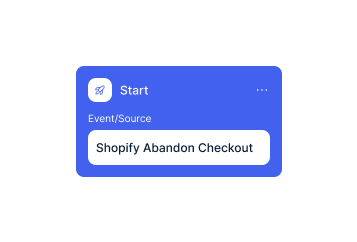
Turn on Microsoft Entra single sign-on, embed the Embedded Widget URL on your website and test the widget.
In the SAP Service Cloud section of Chatarmin, enter your Cloud URL, username and password. Chatarmin validates the credentials against your SAP system before saving the connection.
Select the SAP organisational locations that belong to this Chatarmin account and save the location settings.
Turn on Microsoft Entra single sign-on, embed the Embedded Widget URL on your website and test the widget.
Meta charges around 11 cents per marketing message in Germany (€0.1131) and around 5 cents in Austria and Switzerland (€0.0490). A utility message costs €0.0456 in Germany. Since 1 October 2026, service messages are charged as well, also €0.0456 in Germany. These figures come from the Meta rate card in effect since 1 July 2026.
The connection to SAP Service Cloud is part of your Chatarmin setup. What Chatarmin costs depends on your volume. In a call we walk you through the numbers based on your contact base, your locations and the Flows you plan.
Everything worth knowing about the integration.
The Cloud URL of your SAP Service Cloud system plus a username and password. Chatarmin validates the credentials against your SAP system before saving the connection.
Contacts, cases, notes and chat interactions. The sync runs through your Chatarmin Flows.
Yes. You select one or more SAP organisational locations, for example when one account serves several locations or sales arrangements.
It depends. If the widget serves multiple SAP locations, Microsoft Entra single sign-on is required.
You choose how Chatarmin matches the Entra user to an SAP employee, with lookup by email recommended. Use other options such as employee ID or UPN only if your SAP directory is keyed on them.
No. You save the settings again, and the URL stays the same as long as you don't reset the token.
The old widget URL stops working immediately and Chatarmin generates a new one. You then update every place where the old URL was embedded.
Meta charges around 11 cents per marketing message in Germany and €0.0456 per utility or service message. In Austria and Switzerland a marketing message costs around 5 cents.
No. This integration connects Chatarmin to SAP Service Cloud for WhatsApp, cases and the website widget, while armincx by Chatarmin has its own SAP integration that makes SAP data available to AI agents in customer service.

We look at your SAP Service Cloud setup and show you how locations, widget and Flows work together for you. Free and tailored to your setup.