GDPR-Compliant
ISO 27001
Connected With Your SAP Credentials
With armincx by Chatarmin, you connect SAP right in the integrations area. Then you use the available SAP data and actions wherever your workspace exposes them, such as AI agents or the ticket context.


































Quick check for decision-makers
Connect, use in the ticket, give to the AI agent: with SAP in armincx, your business data from SAP comes to where your team answers customer requests.
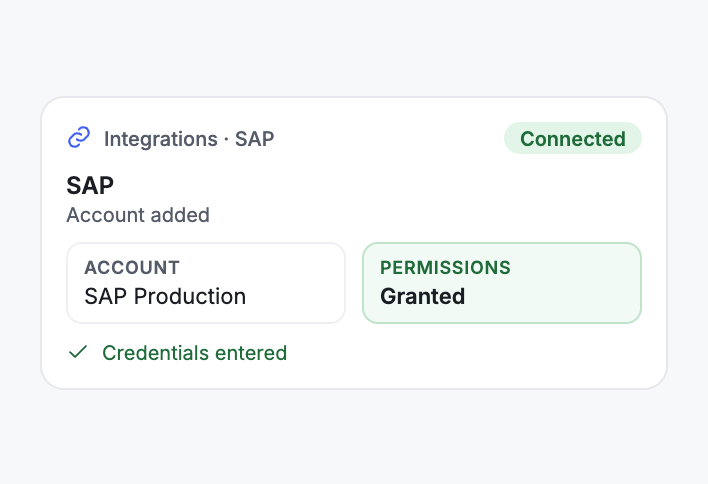
Under Integrations, select SAP, click Connect and add an account. Then enter your credentials.
When connecting, armincx requests permissions. You grant them as the final step of the setup.
Once connected, you use the available SAP data and actions wherever your workspace exposes them. Your AI agents are one example.
You define in its instructions when the agent uses SAP data. We'll show you which data and actions are available to you in the demo.
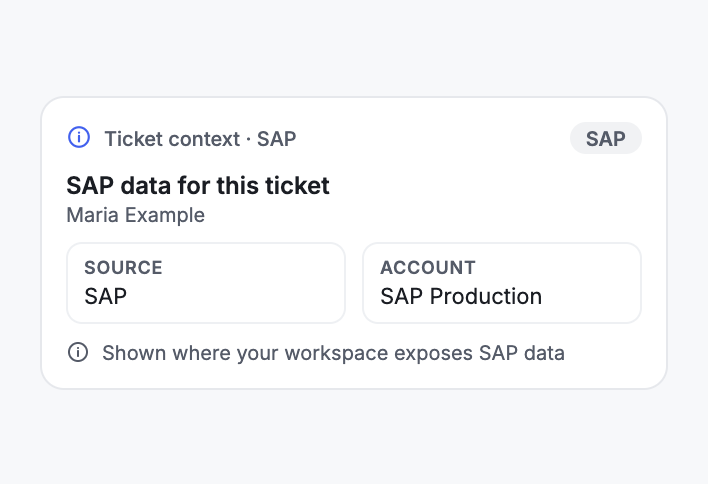
Your workspace can also expose SAP data in the ticket context. Your team then works with the data from SAP right in the ticket.
Which SAP data appears in the ticket depends on what your workspace exposes. In the demo, we go through this for your SAP setup.
The SAP integration connects business data from SAP to armincx. Once connected, you use the available SAP data and actions wherever your workspace exposes them, such as AI agents or the ticket context.
| Place | What you use there |
|---|---|
| AI agents | available SAP data and actions |
| Ticket context | available SAP data and actions |
We'll go through which SAP data and actions that means for your workspace in the demo.
You'll find the step-by-step guide in our documentation.
Select SAP under Integrations, click Connect, add an account and enter your credentials. Finally, grant the requested permissions.
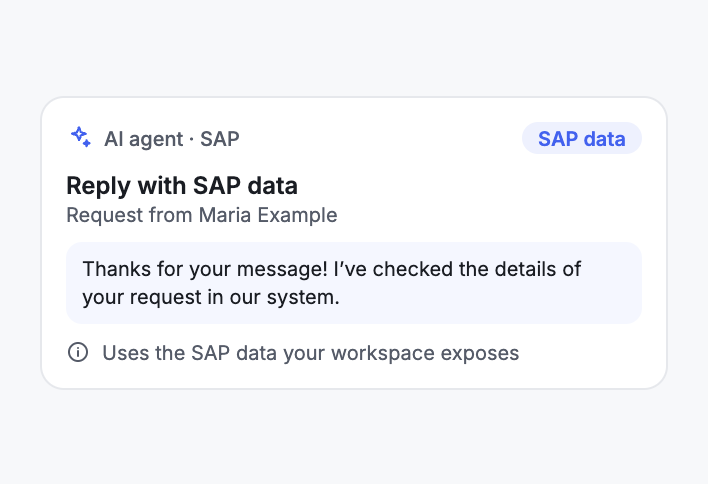
If your workspace exposes SAP data to the AI agent, you instruct the agent when to use it in its reply.
Your team opens a ticket. If your workspace exposes SAP data in the ticket context, it's ready there, without anyone having to check SAP for it.
The SAP integration brings business data from SAP into armincx. Which data and actions from it actually appear with your AI agents and in the ticket context depends on what your workspace exposes. In the demo, we go through this with you for your SAP setup.
In the agent's instructions, define when it should use SAP data and how it words it to the customer. If it's missing details to find the right data, have it ask the customer.
To connect, you need the credentials for your SAP account, and you grant the permissions armincx requests. Check beforehand who in your company approves credentials and permissions for SAP.
How the armincx workflow compares with looking things up in SAP next to your inbox.

Disclaimer: All data conducted from over 50+ Sales Calls with DACH Ecom Owners
The integration is built for companies whose business data lives in SAP and who handle customer service with armincx.
If your workspace exposes the right SAP data in the ticket context, your team doesn't have to dig it out of SAP first.
With the SAP data and actions your workspace exposes to the AI agent, its reply is based on data from your SAP system.
If you work with Xentral, JTL or Odoo, each has its own integration page. These systems can be connected to armincx too.
What leading e-commerce brands from the DACH region say about armincx.
Tobias J.
Braun Büffel

“Intuitive to use and quick in support.”
Dominik Englputzeder
myHarry

“To be honest, we are very excited about the tool. It is exactly what we need.”
Matthias Leibitz
T1TAN

“Top tool. Integrates into our entire tech stack.”
Eren Karacabay
vitabay

“Finally, an AI that doesn’t hallucinate.”
Braun Büffel
“Intuitive to use and quick in support.”
myHarry
“To be honest, we are very excited about the tool. It is exactly what we need.”
T1TAN
“Top tool. Integrates into our entire tech stack.”
vitabay
“Finally, an AI that doesn’t hallucinate.”

Have the credentials for your SAP account ready. When connecting, you grant the requested permissions.
Under Integrations, select SAP, click Connect, add an account and enter your credentials.
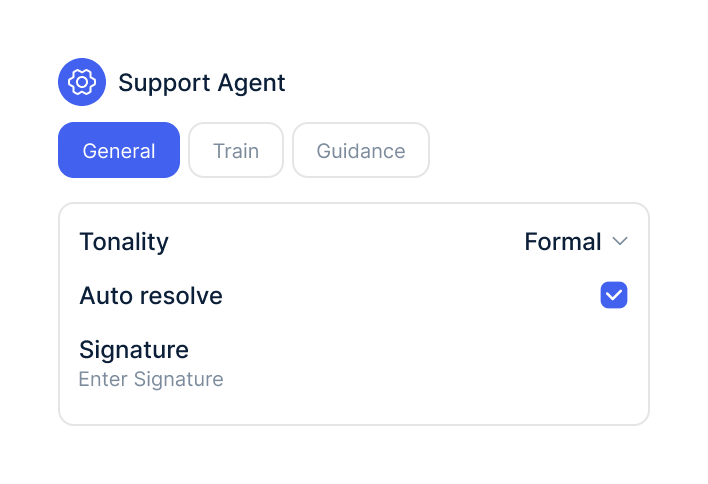
In your AI agents' instructions, define when they should use the available SAP data and actions.
Have the credentials for your SAP account ready. When connecting, you grant the requested permissions.
Under Integrations, select SAP, click Connect, add an account and enter your credentials.
In your AI agents' instructions, define when they should use the available SAP data and actions.
The SAP integration is part of armincx. To connect, you need the credentials for your SAP account.
What armincx costs for your team depends on your ticket volume and the channels you use. We'll go through your setup with you on a call.
Other ERPs you can connect to armincx.
Everything you need to know about the integration.
The credentials for your SAP account. When connecting, you grant the permissions armincx requests.
Under Integrations in armincx. There you select SAP, click Connect and add an account.
Yes. Once connected, you use the available SAP data and actions with your AI agents too.
It depends. SAP data is in the ticket context if your workspace exposes it there.
That depends on what your workspace exposes. In the demo, we go through this for your SAP setup.
We'll clarify that in the demo based on your SAP setup.
Yes. When connecting, armincx requests permissions that you grant.
You define that in its instructions. There you set when it draws on the available SAP data and actions.
The SAP integration is part of armincx. What armincx costs depends on your ticket volume and your channels.

In 15 minutes we'll show you how to connect SAP and where your SAP data is available in armincx.