GDPR-Compliant
ISO 27001
Approved by Your Team
armincx by Chatarmin automatically creates a ticket for every PayPal dispute. Your team or the AI agent messages the buyer, provides evidence or makes an offer, right from the inbox. When the AI agent proposes an action that moves money, it waits for your approval by default.


































Quick check for decision makers
See the dispute, provide evidence, offer a solution: with PayPal in armincx it all runs in the ticket, alongside every other request from the customer.
When a dispute is opened on a connected PayPal account, armincx automatically creates a ticket in the PayPal channel, with the reason and amount in the subject and the tags dispute and paypal.
armincx matches the ticket to a contact via the buyer's email address or creates a new one. When PayPal closes the case, the ticket is resolved automatically. A dispute without a buyer email only gets a ticket once PayPal reports the address.
In the customer panel, your team sees the status, amount, timeline, messages and evidence requests. With "Respond to dispute", it replies straight from the ticket.
Send a message, make an offer, provide evidence, escalate to a claim, accept the claim, appeal and acknowledge a returned item. PayPal decides which of these is allowed at each stage of the dispute.
Before your team triggers a destructive action in the ticket, such as accepting a claim, armincx asks for confirmation. For the AI agent, offers and accepted claims require approval by default.
Accepting a claim and some offers move money. So always check the amount and the type of offer before you confirm.
The armincx PayPal integration brings your PayPal disputes into the inbox: every dispute becomes a ticket, and your team or the AI agent responds to it right there. A dispute is opened when a buyer reports an order to PayPal as not received or not as described, or files a chargeback.
You need a PayPal REST app with Disputes enabled, created in the PayPal Developer Dashboard. From this app, copy the Client ID and Client Secret from the Live tab, not from Sandbox. armincx always uses PayPal's live API, so sandbox credentials don't work.
Under Integrations, select PayPal, add a display name if you like and paste the two values. For several merchant accounts, repeat this step. Each account brings its own disputes.
| What | How |
|---|---|
| Channel | a dedicated PayPal channel, separate from other conversations |
| Contact | found or created via the buyer's email address |
| Subject | reason and amount of the dispute |
| Tags | dispute and paypal, usable for views, routing rules and AI agent triggers |
| Status | open, or resolved automatically once PayPal closes the case |
Disputes also appear in the customer panel of every ticket from that customer, open and resolved. armincx updates them as soon as something changes at PayPal and also reconciles every few hours.
Your AI agents get read and write actions:
Make offer and Accept claim require approval by your team by default. For the other actions, you set the approval yourself.
You'll find the step-by-step guide in our documentation.
The buyer reports the case to PayPal. In armincx, a ticket appears automatically in the PayPal channel, with the reason and amount, linked to the buyer's contact.

PayPal requests evidence. The customer already sent a photo of the parcel in the chat. The AI agent submits it to PayPal with a note.

The item arrived damaged. The AI agent prepares an offer, and your team checks the amount and type before approving it.

When PayPal requests evidence, time matters. With the dispute in the ticket, your team has everything in one place: PayPal's request, the customer's messages and their other tickets.
What you can provide:
PayPal decides which response is allowed at each stage of a dispute. You can see what's possible right now in the dispute detail in armincx.
| Response | What it's for |
|---|---|
| Send message | write to the buyer within the dispute |
| Make offer | propose a refund, replacement or other solution |
| Provide evidence | upload requested notes and files |
| Escalate to claim | move forward when negotiation fails |
| Accept claim | close the case in the buyer's favour |
| Appeal | challenge a decision by PayPal |
| Acknowledge returned item | confirm a return has arrived |
Give the agent a fixed order of steps: look up the customer's disputes first, then load the current state of the dispute from PayPal, and only use offer and accept types shown there. Keep everything that moves money subject to approval until you trust the process.
The workflow with armincx compared with the workflow via PayPal's Resolution Center.

Disclaimer: All data conducted from over 50+ Sales Calls with DACH Ecom Owners
The integration is built for shops that offer PayPal as a payment method and handle customer service with armincx.
Customer email in the inbox, dispute in the Resolution Center: whoever handles both keeps switching tools. With armincx, both sit in the same ticket.
Photos, screenshots, documents: what the customer sent in the ticket, the AI agent can submit as evidence.
Each merchant account is connected separately. With clear display names, you always know which shop a dispute belongs to.
What leading e-commerce brands from the DACH region say about armincx.
Tobias J.
Braun Büffel

“Intuitive to use and quick in support.”
Dominik Englputzeder
myHarry

“To be honest, we are very excited about the tool. It is exactly what we need.”
Matthias Leibitz
T1TAN

“Top tool. Integrates into our entire tech stack.”
Eren Karacabay
vitabay

“Finally, an AI that doesn’t hallucinate.”
Braun Büffel
“Intuitive to use and quick in support.”
myHarry
“To be honest, we are very excited about the tool. It is exactly what we need.”
T1TAN
“Top tool. Integrates into our entire tech stack.”
vitabay
“Finally, an AI that doesn’t hallucinate.”

In the PayPal Developer Dashboard, create a REST app with Disputes enabled and copy the Client ID and Secret from the Live tab.

Under Integrations, select PayPal, add a display name and paste the credentials. Each merchant account separately.
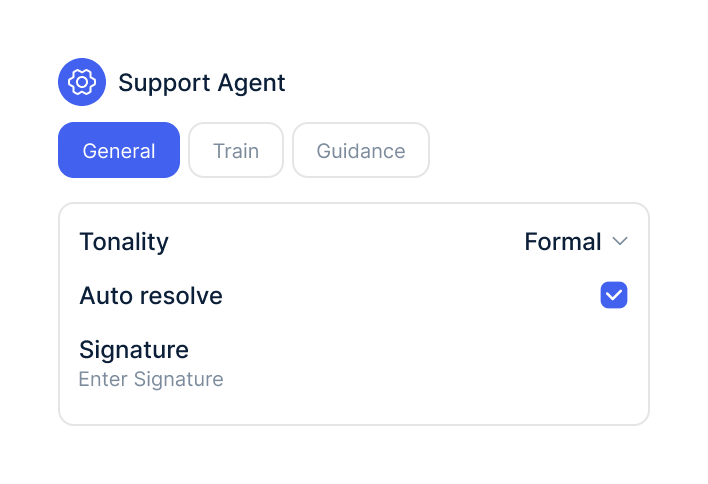
In your AI agents, switch on the PayPal actions, choose the accounts and decide which actions need approval.
In the PayPal Developer Dashboard, create a REST app with Disputes enabled and copy the Client ID and Secret from the Live tab.
Under Integrations, select PayPal, add a display name and paste the credentials. Each merchant account separately.
In your AI agents, switch on the PayPal actions, choose the accounts and decide which actions need approval.
The PayPal integration is part of armincx. To connect, you need a PayPal merchant account with a REST app that has Disputes enabled.
What armincx costs for your team depends on your ticket volume and the channels you use. In a call, we'll work through your setup with you.
These tools complement PayPal in customer service.
Everything you need to know.
A PayPal REST app with Disputes enabled. From it, copy the Client ID and Client Secret from the Live tab.
No. armincx always uses PayPal's live API, so no disputes are retrieved with sandbox credentials.
Yes. Every dispute with a buyer email automatically becomes a ticket in the PayPal channel. If a linked ticket already exists, armincx uses that one.
The ticket is marked as resolved automatically. The dispute stays visible in the customer panel as history.
PDF, PNG, JPG and GIF, up to 10 MB per file and 50 MB per submission. You can add a note of up to 2,000 characters.
Yes, but only with approval from your team by default. The same applies to offers.
It depends. PayPal only allows certain responses at each stage of a dispute.
Yes. Each merchant account is connected separately and brings its own disputes.
Your team adds their PayPal email address to the contact. armincx searches for disputes across all of the contact's email addresses.

In 15 minutes we'll show you how disputes, evidence and the AI agent come together in one inbox.