GDPR-Compliant
ISO 27001
Test Mode Before Going Live
With armincx by Chatarmin, you connect your Sage 100 interface to customer service through a custom connection. Depending on setup, your team sees relevant customer or order information in the Inbox, and your AI agents use the actions configured for your account.


































Quick check for decision makers
See customer data, review actions, test safely: with Sage 100 in armincx, context from your ERP comes into customer service, tailored to your interface.
Every Sage 100 connection is tailored to your company's interface. That's why the available data and actions vary from account to account.
You clarify the exact scope of your connection with Chatarmin Support. They also help with account-specific setup and supported actions.
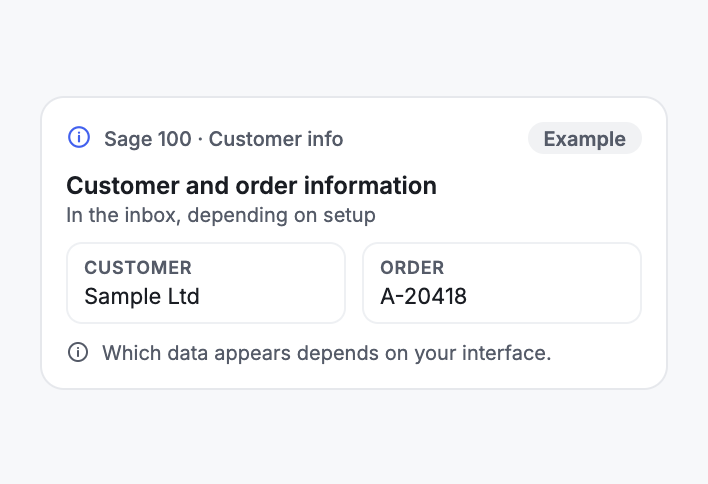
Depending on setup, armincx shows relevant customer or order information from Sage 100 in the Inbox. Your team has the context where it answers the request.
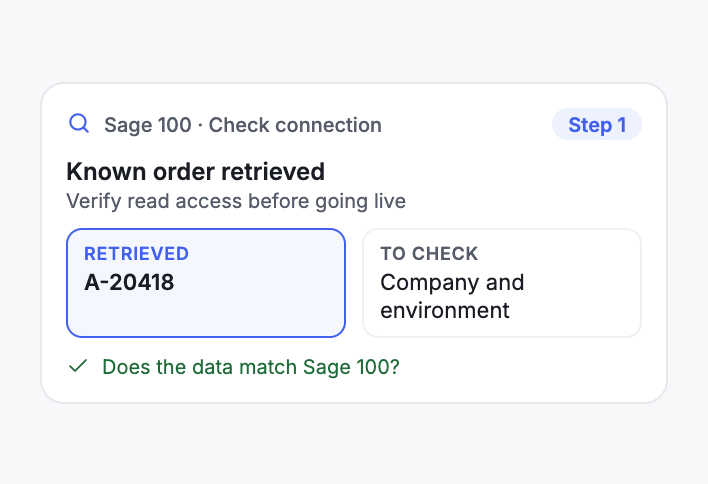
After connecting, retrieve a known customer or order. This lets you check that armincx reads from the right Sage company and environment.
Depending on setup, configured support actions are available to your AI agents. Before going live, you check which actions are enabled for your account and how their approvals are set.
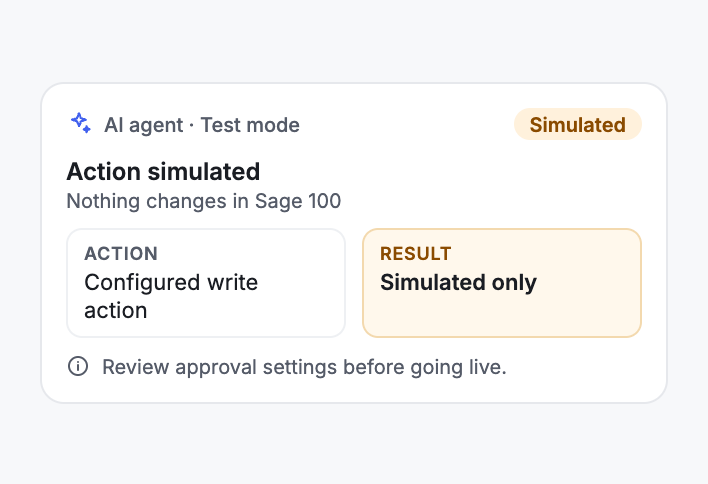
In the AI agent's test mode, configured write actions are simulated. Nothing changes in Sage 100.
Sage 100 is ERP software from Sage. armincx supports customer-specific Sage 100 connections: depending on setup, the integration brings relevant customer or order information into the Inbox and makes configured support actions available to your AI agents.
Every Sage 100 connection is tailored to the customer's interface. That's why the available data and actions vary by account. You clarify the exact scope of your connection with Chatarmin Support.
Your interface provider gives you the endpoint and credentials. Ask them to confirm which Sage company and which environment the connection uses.
| Step | What you do |
|---|---|
| Connect the interface | Under Integrations, select Sage 100 and enter the endpoint and credentials from your provider. |
| Verify read access | Retrieve a known customer or order and check that armincx reads from the right company and environment. |
| Review actions | Check which actions are enabled for your account and review their approval settings before you go live. |
The test mode of your AI agents simulates configured write actions without changing Sage 100.
You'll find the step-by-step guide in our documentation.
A customer asks about her order. Depending on setup, relevant customer or order information from Sage 100 is in the Inbox, so your team doesn't have to check the ERP first.
After connecting, your team retrieves a known customer or order. This shows whether armincx reads from the right company and environment.
Before an action goes live, you test it in the AI agent's test mode. The write action is simulated and nothing changes in Sage 100.
Because every Sage 100 connection is custom, a staged rollout makes sense:
| Question | Contact |
|---|---|
| Endpoint and credentials | Your interface provider |
| Which company and environment | Your interface provider |
| Exact scope of your connection | Chatarmin Support |
| Account-specific setup, supported actions, connection behaviour | Chatarmin Support |
The workflow with armincx compared with the workflow where your team looks things up in Sage 100. What's available in your account depends on your setup.

Disclaimer: All data conducted from over 50+ Sales Calls with DACH Ecom Owners
The integration is built for businesses that work with Sage 100 and handle customer service with armincx.
Depending on setup, customer or order information is right in the Inbox. Your team doesn't have to check Sage 100 before answering.
If your Sage 100 setup runs through a provider's interface, the connection to armincx is tailored to exactly that interface.
Check read access first, then review actions and approvals, then simulate in test mode. That way, you check every step before you go live.
What leading e-commerce brands from the DACH region say about armincx.
Tobias J.
Braun Büffel

“Intuitive to use and quick in support.”
Dominik Englputzeder
myHarry

“To be honest, we are very excited about the tool. It is exactly what we need.”
Matthias Leibitz
T1TAN

“Top tool. Integrates into our entire tech stack.”
Eren Karacabay
vitabay

“Finally, an AI that doesn’t hallucinate.”
Braun Büffel
“Intuitive to use and quick in support.”
myHarry
“To be honest, we are very excited about the tool. It is exactly what we need.”
T1TAN
“Top tool. Integrates into our entire tech stack.”
vitabay
“Finally, an AI that doesn’t hallucinate.”

Your interface provider gives you the endpoint and credentials. Ask them to confirm which company and environment the connection uses.
Under Integrations, select Sage 100 and enter the endpoint and credentials. Then retrieve a known customer or order.
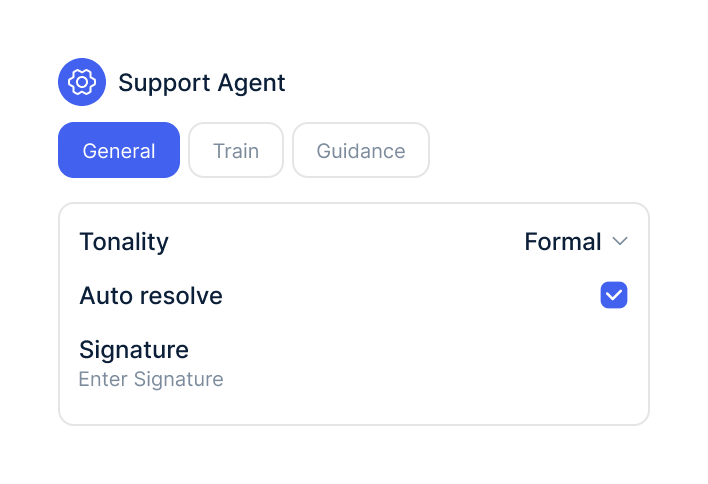
Check which actions are enabled and how their approvals are set. Test write actions in test mode first.
Your interface provider gives you the endpoint and credentials. Ask them to confirm which company and environment the connection uses.
Under Integrations, select Sage 100 and enter the endpoint and credentials. Then retrieve a known customer or order.
Check which actions are enabled and how their approvals are set. Test write actions in test mode first.
The Sage 100 integration is part of armincx. To connect, you need the endpoint and credentials from your Sage 100 interface provider.
What armincx costs for your team depends on your ticket volume and the channels you use. In a call, we'll work through your setup with you.
More ERP and inventory management systems for armincx.
Everything you need to know about the integration.
The endpoint and credentials from your Sage 100 interface provider. Ask them to confirm which company and environment the connection uses.
No. Every Sage 100 connection is tailored to the customer's interface, so data and actions vary by account.
Depending on setup, relevant customer or order information in the Inbox. Chatarmin Support can tell you the exact scope of your connection.
The actions configured for your account. Chatarmin Support can tell you which ones apply to your account.
Retrieve a known customer or order. This shows whether armincx reads from the right company and environment.
It depends. Before going live, you check which actions are enabled and how their approvals are set.
Yes. The AI agent's test mode simulates configured write actions without changing anything in Sage 100.
Your interface provider confirms it. It's best to ask before setting up.
Chatarmin Support helps with account-specific setup, supported actions and connection behaviour. The endpoint and credentials come from your interface provider.

In 15 minutes we'll show you how armincx works with Sage 100 and clarify with you what your interface makes possible.