GDPR-Compliant
ISO 27001
Approved by Your Team
armincx by Chatarmin finds your customers' Quivo orders via their email address and shows status, items and tracking link in the ticket. While an order is still open, your team requests a cancellation or changes the delivery address. If the AI agent takes this on, it waits for your approval by default.


































Quick check for decision makers
Find the order, request a cancellation, fix the address: with Quivo in armincx it all happens next to the customer's message, not in a second tool.
When a ticket's contact matches a customer with Quivo orders, the customer panel shows those orders: order number, status, items and tracking link, if there is one.
Under "View details" you see the complete order: delivery and billing address, every item and the fulfilment orders behind it. You don't need Shopify for this, armincx looks up the orders directly via the email address.
While the order is still open, your team requests a cancellation with a reason and confirmation, or changes the delivery address, straight from the ticket.
Once an order is delivered, cancelled or a cancellation has already been requested, armincx hides both actions. After shipment, Quivo no longer accepts cancellations or address changes.
The AI agent can request cancellations and change delivery addresses. By default, both actions need your approval every time, because they affect a real shipment.
A wrong cancellation or address change can't always be undone. So keep approval switched on for both actions.
The armincx Quivo integration brings your Quivo orders into the ticket: your team and the AI agent see order and shipment status and handle questions about delivery status, cancellations and address changes without switching tools.
You need a Quivo API key, username and password. A Shopify connection isn't required, because armincx looks up orders directly via the customer's email address.
Under Integrations, select Quivo, click Connect and enter the three credentials. armincx checks them by logging in before saving. If the login fails, you'll see an error and nothing is saved. Then switch on the Quivo actions your AI agents need in their settings.
| What | Where |
|---|---|
| Order number, status, items | on every order card in the customer panel |
| Tracking link | on the order card, as soon as there is one |
| Delivery and billing address | in the order detail ("View details") |
| Every item and fulfilment order | in the order detail ("View details") |
| Action | What happens |
|---|---|
| Request cancellation | with a reason and confirmation; Quivo can reject the request if the order has already shipped |
| Change delivery address | updates the delivery address before the order ships |
Both actions are only available while the order is still open. The AI agent has the same two actions, and by default both always require approval from your team.
You'll find the step-by-step guide in our documentation.
A customer asks about her order. armincx finds it at Quivo via her email address, with status, items and tracking link right in the ticket.

A customer ordered twice. Your team requests the cancellation from Quivo with a reason and tells him it has been requested until the status changes.

The delivery address is wrong. The AI agent prepares the change, and your team checks the right order in the order detail before approving it.

A cancellation through armincx is a request to Quivo, not a confirmation. Quivo can reject it, usually because the order has already shipped. In that case, the status doesn't change to cancelled.
Cancellation and address change only appear for open orders. Once an order is delivered, cancelled or a cancellation has already been requested, both actions disappear. As soon as an order shows as shipped, Quivo no longer accepts cancellations or address changes. From then on, your team takes over the conversation.
The workflow with armincx compared with the workflow via the Quivo portal.

Disclaimer: All data conducted from over 50+ Sales Calls with DACH Ecom Owners
The integration is built for shops that ship through Quivo and handle customer service with armincx.
You don't need a Shopify connection for Quivo. armincx looks up orders directly via the customer's email address.
Instead of searching for the order in the Quivo portal, your team requests the cancellation right in the ticket, with a reason and confirmation.
The order detail shows the delivery and billing address and every item. That way, your team changes the address on the order the customer actually means.
What leading e-commerce brands from the DACH region say about armincx.
Tobias J.
Braun Büffel

“Intuitive to use and quick in support.”
Dominik Englputzeder
myHarry

“To be honest, we are very excited about the tool. It is exactly what we need.”
Matthias Leibitz
T1TAN

“Top tool. Integrates into our entire tech stack.”
Eren Karacabay
vitabay

“Finally, an AI that doesn’t hallucinate.”
Braun Büffel
“Intuitive to use and quick in support.”
myHarry
“To be honest, we are very excited about the tool. It is exactly what we need.”
T1TAN
“Top tool. Integrates into our entire tech stack.”
vitabay
“Finally, an AI that doesn’t hallucinate.”

You need a Quivo API key, username and password. A Shopify connection isn't required.

Under Integrations, select Quivo, click Connect and enter the credentials. armincx checks them by logging in.
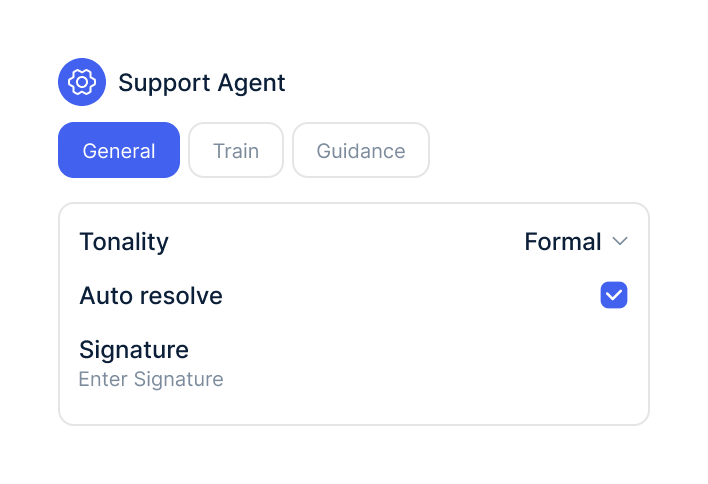
Switch on the Quivo actions your AI agent needs. Approval for cancellations and address changes is on by default.
You need a Quivo API key, username and password. A Shopify connection isn't required.
Under Integrations, select Quivo, click Connect and enter the credentials. armincx checks them by logging in.
Switch on the Quivo actions your AI agent needs. Approval for cancellations and address changes is on by default.
The Quivo integration is part of armincx. To connect, you need your Quivo credentials: API key, username and password.
What armincx costs for your team depends on your ticket volume and the channels you use. In a call, we'll work through your setup with you.
These tools complement Quivo in customer service.
Everything you need to know.
No. armincx finds Quivo orders directly via the customer's email address.
A Quivo API key, username and password. armincx checks them by logging in before they're saved.
No. Quivo can reject the request, usually because the order has already shipped.
"Cancellation requested", not "cancelled". Only confirm the cancellation once the order's status changes.
No. Once an order has shipped, Quivo no longer accepts address changes.
Because the order is no longer open. The buttons disappear once an order is delivered or cancelled, or a cancellation has already been requested.
Yes, it can request cancellations. By default, it needs your approval every time.
Yes, as long as the order hasn't shipped. This also only runs after your approval by default.
The delivery and billing address, every item and the fulfilment orders behind the order.

In 15 minutes we'll show you how orders, cancellations and the AI agent come together in one inbox.