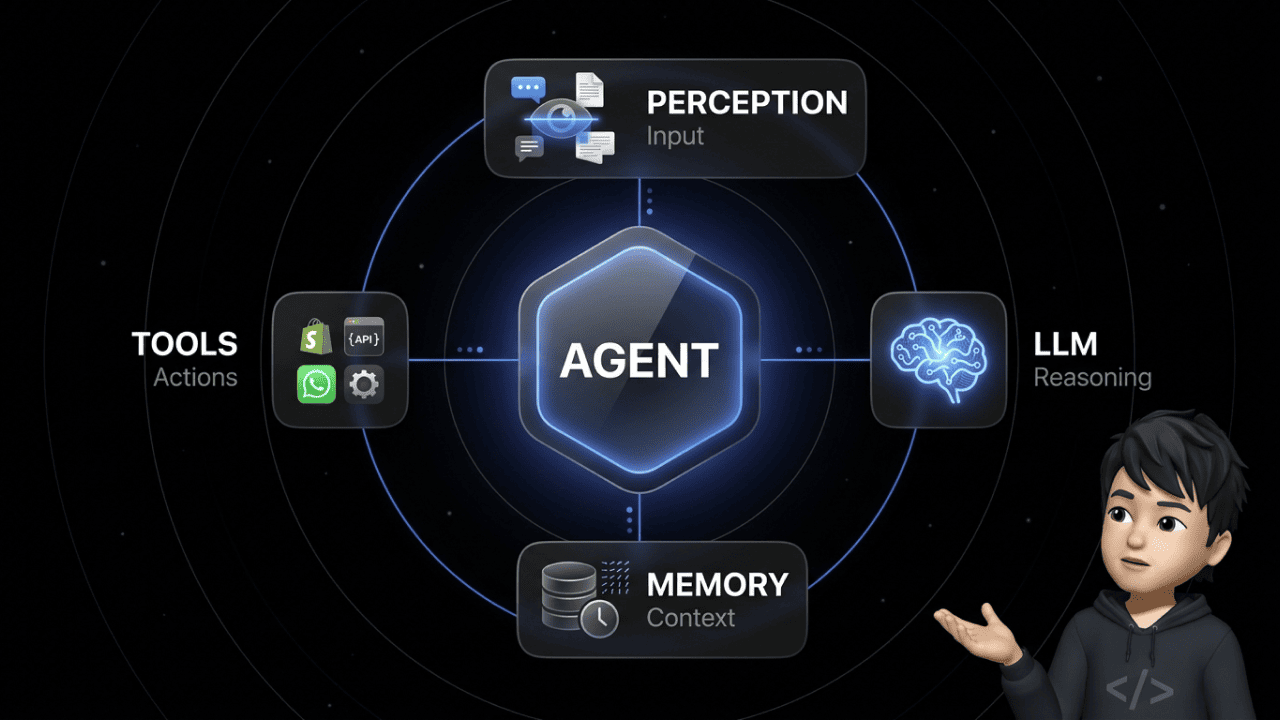

Your Monday starts in the dashboard: export the campaign report, compare flow revenue, build the segment for Thursday. With the Chatarmin MCP, you connect Claude to your WhatsApp marketing and ask the same questions in a chat. Claude pulls the data straight from Chatarmin and answers you in plain language. Below you will find 15 prompts to copy, sorted by the tasks that come up in WhatsApp marketing every week, with a focus on Shopify brands.
All 15 prompts at a glance
| No. | Prompt | Area | Type |
|---|---|---|---|
| 1 | Weekly campaign report | Reporting | Read |
| 2 | Flow ranking vs. previous period | Reporting | Read |
| 3 | Campaigns with weak delivery | Reporting | Read |
| 4 | Cost levers in large segments | Reporting | Read |
| 5 | Subscribers without a first purchase | Contacts | Read |
| 6 | Tag VIP customers | Contacts | Write |
| 7 | Frequent questions from chats | Chats | Read |
| 8 | Marketing template with button | Templates | Write |
| 9 | Two template variants for an A/B test | Templates | Write |
| 10 | Welcome flow for new subscribers | Flows | Write |
| 11 | Review an existing flow | Flows | Read |
| 12 | Create a campaign with a dry run | Campaigns | Write with confirmation |
| 13 | Check before approval | Campaigns | Read |
| 14 | Shopify products as a WhatsApp template | Shopify + Chatarmin | Write |
| 15 | Email vs. WhatsApp comparison | Klaviyo + Chatarmin | Read |
Tip for getting started: Begin with the read prompts. That way you learn how Claude handles your data before anything changes in your account.
What do you need to connect Claude to WhatsApp?
You need a Chatarmin account, an AI tool with MCP support and the Chatarmin MCP as a connector.
- Chatarmin account with the WhatsApp Business API: Personal WhatsApp accounts cannot be connected.
- AI tool with MCP support: The Chatarmin MCP works with Claude, ChatGPT, Cursor, VS Code and GitHub Copilot. In ChatGPT, write actions require a Business, Enterprise or Edu plan, while the Pro plan can only read.
- Set up the connector: Add the Chatarmin MCP in your AI tool and sign in via OAuth with your Chatarmin login. You will find the guide in the Chatarmin Help Centre under "Connect Chatarmin MCP to AI tools".
The Chatarmin MCP is available to all Chatarmin customers. The only exception is the tool for sending individual messages: it is a paid add-on, which your customer success team can activate on request.
What can the Chatarmin MCP do?
Through the MCP, your AI assistant can access eight areas of your Chatarmin account.
| Area | What Claude does with it |
|---|---|
| Contacts and segments | Search, filter and tag contacts |
| Chats | Read and analyse conversations |
| Messages | Send WhatsApp messages (paid add-on) |
| Orders and attribution | Retrieve orders and attributed revenue |
| Flows | Create and edit automated customer journeys |
| Templates | Create message templates |
| Campaigns | Plan campaigns, created only after your confirmation |
| Analytics | Query metrics on campaigns, flows and revenue |
You can see exactly which actions are available in your AI tool's tool list for the Chatarmin connector. AChatarmin is expanding its scope continuously.
Prompts for reporting and analysis
Reporting is where the MCP saves time fastest. Questions that would otherwise mean opening several dashboard views, Claude answers in one step.
1. The weekly campaign report
Summarise all WhatsApp campaigns from the last 7 days: recipients, open rate, click rate and attributed revenue. Sort by revenue and flag the campaign with the weakest click rate.
What for: a ready-made table for your weekly meeting, without an export. Watch out for: Always state the time period precisely. A model may read "last week" as the calendar week or as the last seven days.
2. The flow ranking
Which three flows generated the most revenue in the last 30 days? Compare them with the 30 days before and explain the biggest change.
What for: You can see straight away which flow is growing and which is slowing down. Watch out for: Ask Claude for the raw figures behind the explanation so you can follow its interpretation.
3. Campaigns with weak delivery
Check last month's campaigns for unusually low delivery rates. List the affected campaigns with messages sent and messages delivered.
What for: spotting delivery problems early, before they distort your results. Watch out for: Define what "unusually low" means, for example "below a 90% delivery rate".
4. Uncovering cost levers
Show me campaigns from the last 60 days with many recipients and little revenue per message. Suggest which segments I should shrink or target more precisely.
What for: WhatsApp marketing messages are billed on a usage basis. A more precisely targeted segment therefore lowers your cost per campaign directly. Watch out for: The suggestions are a starting point. Only your team knows whether a segment is strategically important.
Prompts for contacts, segments and chats
5. Subscribers without a first purchase
How many contacts with a WhatsApp opt-in have never placed an order since signing up? Give me the number and three ideas for a first-purchase campaign.
What for: You find untapped revenue potential in your existing list. Watch out for: Ask for the number rather than a contact list. That is enough for the decision and keeps personal data out of the chat.
6. Tagging VIP customers
Find all contacts who have ordered more than three times in the last 90 days. Show me the number first, then give them the tag "VIP".
What for: a clean VIP segment for exclusive campaigns. Watch out for: For write actions, the "show me first" step is always worth it. That way you check the result before anything changes in your account.
7. Frequent questions from chats
Search the chats from the last 14 days for questions about delivery times. Summarise the most frequent questions and suggest an answer we can use as an FAQ.
What for: You spot recurring questions and can answer them proactively, for example in a flow. Watch out for: Ask for a summary rather than individual chat histories.
Prompts for templates and flows
8. A marketing template with a button
Create a marketing template for our autumn sale: a short greeting with the first name, 20% off the entire range and a button linking to https://yourshop.com/sale. Keep it casual and friendly.
What for: a finished template in seconds instead of in the editor. Watch out for: Like every WhatsApp template, it then goes through Meta's review.
9. Two variants for an A/B test
Write two variants of the autumn sale template: one focused on urgency, one focused on product benefits. Create both in Chatarmin.
What for: test variants without having to write everything twice. Watch out for: Change only one thing per test, otherwise you will not know what made the difference.
10. The welcome flow
Build a welcome flow for new WhatsApp subscribers: a greeting straight after the opt-in, after two days a message featuring our bestsellers [Product A], [Product B] and [Product C], and after five days a discount code for the first purchase if no order has been placed by then.
What for: the framework of your most important automation in a single step. Watch out for: The more precisely you describe timings, products and conditions, the less you will need to fix in the flow builder afterwards. Check the whole flow once before activating it.
11. Reviewing an existing flow
Explain step by step how our abandoned cart flow is structured and suggest three concrete improvements.
What for: ideal when you take over a flow someone else built. Watch out for: Implement improvements one at a time and compare the results after two weeks.
Prompts for campaigns
12. Creating a campaign with a dry run
Create a campaign for the "VIP" segment using the "autumn_sale" template, sending on Thursday at 6 pm. Do a dry run first and show me the number of recipients before you create the campaign.
What for: campaign planning without clicking through every screen. Watch out for: The Chatarmin MCP only creates campaigns after your explicit confirmation. The dry run shows you beforehand who the campaign would reach.
13. The check before approval
Check the campaign scheduled for Thursday: are the segment, template, time and number of recipients correct? Summarise everything in three sentences before I approve it.
What for: a second pair of eyes before every send. Watch out for: Approval remains your decision. Claude only provides the summary.
Prompts that combine several tools
The MCP is at its strongest when you also connect other tools' MCP servers in Claude. Shopify and Klaviyo both offer their own official servers for this.
14. Shopify products as a WhatsApp template
Use our Shopify store's Storefront Catalog MCP to find three products from the autumn category. Turn them into a WhatsApp template in Chatarmin that briefly introduces the products and links to the category with a button.
What for: product information and links go straight from your store into the template. Watch out for: Shopify's Storefront Catalog MCP provides catalogue data such as products and prices, even without signing in. Sales figures are not available there.
15. Email vs. WhatsApp comparison
Get the open and click rates of our last three newsletters from Klaviyo. Compare them with the WhatsApp campaigns in Chatarmin over the same period and summarise the differences in a table.
What for: a channel comparison that would otherwise mean merging two exports. Watch out for: The Klaviyo MCP server must also be connected in your AI tool.
How do you write prompts that work?
Good prompts state the time period, metric and format and build in a preview before every change. All 15 prompts above follow this pattern.
| Element | Weak | Strong |
|---|---|---|
| Time period | "recently" | "in the last 7 days" |
| Metric | "How did it go?" | "open rate, click rate and revenue" |
| Format | not specified | "as a table, sorted by revenue" |
| Preview | "Tag all VIPs" | "Show me the number first, then tag them" |
| Tool | not specified with several connectors | "Use the Chatarmin MCP" |
Results can vary depending on the AI model. The Chatarmin MCP works with Claude, ChatGPT, Cursor and other tools. Each model chooses tools and wording slightly differently. If a prompt does not deliver the result you want, make it more specific.
What should you know before you start?
The MCP saves a lot of clicking, and responsibility for your campaigns stays with you. These points complete the picture:
- The MCP is new. Chatarmin is expanding its scope continuously, and individual actions may still change.
- AI assistants sometimes misinterpret figures. Double-check any metric a budget decision relies on in the Chatarmin dashboard.
- Your AI tool's provider also processes your data. Clarify with your data protection officer which AI account may access customer data under which contract.
- Query metrics, not people: A count or a rate is enough for most decisions. You will rarely need phone numbers or names in the chat.
- Opt-in still applies: Campaigns only go to contacts with WhatsApp consent. Contacts from other channels need their own, channel-specific consent under GDPR.
Conclusion: is it worth connecting Claude to WhatsApp?
Yes, if you analyse your WhatsApp marketing regularly and build new campaigns, templates or flows. With the Chatarmin MCP, reports, segments and drafts are created right in the chat, and the MCP only creates campaigns after your approval. Start with the read prompts, adapt them to your segments and templates and save the ones you need every week.
Already using Chatarmin? You can connect the MCP straight away. The guide is in the Help Centre. Not a customer yet? Book a demo and see how more than 500 brands are building WhatsApp into a revenue channel.
Frequently asked questions about Claude and WhatsApp
Can I connect Claude to WhatsApp?
Yes. With the Chatarmin MCP, you connect Claude to your WhatsApp Business account at Chatarmin and retrieve contacts, campaigns, flows and metrics directly in the chat.
Does this also work with ChatGPT?
Yes. In ChatGPT, the Chatarmin MCP runs through Developer Mode, and OpenAI allows write actions such as drafts and campaigns on the Business, Enterprise and Edu plans.
Do I need programming skills?
No. You add the connector in your AI tool and sign in with your Chatarmin login.
Does the Chatarmin MCP cost extra?
It depends. The MCP is included for all Chatarmin customers. Only the tool for sending individual messages is a paid add-on.
Can Claude send campaigns without my approval?
No. The Chatarmin MCP only creates campaigns after your explicit confirmation, and you can run a dry run beforehand.
Does this work with my personal WhatsApp?
No. The Chatarmin MCP works with the official WhatsApp Business API, which you use via Chatarmin.
What data can Claude see via the Chatarmin MCP?
Claude sees the data needed for your request, limited to your own organisation. Ask for metrics rather than individual contacts, and personal data stays out of the chat.